

Last updated: October 22, 2026
Quick Answer: In most cases, a gimbal not working can be fixed by checking four things in this order: battery, axis locks, motor load, then firmware. Start with the simple checks below before assuming the gimbal motors are broken.
Key Takeaways
- Most gimbal failures come from power, lock, or load issues, not a dead unit.
- If a gimbal will not turn on, check the battery, contacts, and charger first.
- Left-on axis locks are a common startup problem; unlock every axis before powering up.
- A shaking or humming gimbal usually points to overload, bad balance, or a wrong startup state.
Quick diagnosis: what the symptom usually means
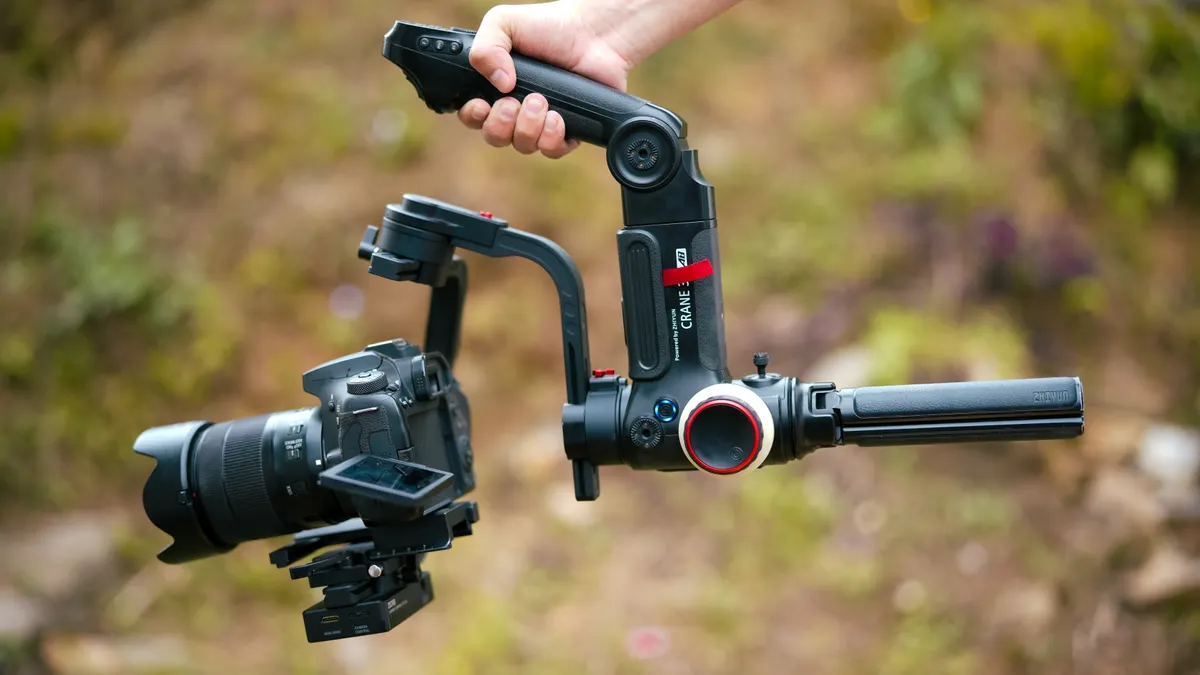
A gimbal not working is usually a power, lock, or motor-load problem, not a dead unit. If the screen will not light, the battery path is the first place to look. If the gimbal powers on but one arm stays stuck, an axis lock or transport lock is the likely culprit. If it powers on and then buzzes, jerks, or shuts itself off, the motors may be fighting an out-of-range payload or a jammed axis.
The quickest way to narrow it down is to match the symptom to the failure point:
- No power at all: battery, charger, contacts, or cable.
- Beeping or flashing error: overload, axis lock, or calibration-related protection.
- One axis drifting or refusing to move: mechanical obstruction, lock left in place, or a bad start-up state.
- Humming, vibrating, or cutting out after a few seconds: motor overload, poor balance, or a firmware fault.
That matters because the wrong fix wastes time. People often reinstall firmware before checking a $20 battery or a small lock switch. Others force the motors to move against a locked arm and create a bigger problem. The right order is simple: power, locks, load, then software, and if the fault is unclear, consult the manufacturer’s support or a professional technician.
If the gimbal is part of a broader setup issue, the hub page on gimbal setup and operation belongs nearby. This page stays on troubleshooting only, so the steps below are organized to get the rig working again without drifting into balance or calibration how-tos. For device-specific guidance, see DJI Support, Zhiyun Support, and Hohem Support.
Why won’t my gimbal turn on?
A gimbal that will not turn on usually has a battery or connection issue, and the first fix is to charge, reseat, and inspect the power path before anything else. Many units fail here because the battery is low enough to trigger protection, not because the controller is dead.
Use this order:
- Remove the battery and reinstall it firmly. Seat it until the latch clicks. A loose pack can interrupt power under load even if it looked installed.
- Charge with the correct charger for at least 30 minutes. If the battery was deeply discharged, a few minutes is often not enough for the controller to wake up.
- Check the contacts on both battery and body. Use a dry microfiber cloth on visible dirt only. Bent or oxidized contacts can stop current flow, and if the contacts look damaged, consult the manufacturer or a repair professional.
- Try a second battery if one is available. If the second pack works, the issue is the battery, not the gimbal.
- Inspect the power button for a delayed or partial press. Some models need a long press, not a tap.
- Verify the cable or grip connection on modular systems. A loose handle or cable can mimic a dead battery.
- If the unit still stays dark, update or recover firmware through the maker’s app or desktop utility. A failed firmware flash can leave a unit unresponsive until it is recovered.
The most common mistake here is assuming a dead screen means a dead main board. In reality, many gimbals simply will not boot on a weak pack. Another mistake is using a random USB cable when the model expects its own charger or a specific voltage. That can leave the battery partially charged or not charging at all.
This is the point where a model name matters. A DJI RS series rig, a Zhiyun Crane, and a Hohem handheld unit can all fail to power on for different reasons, but the battery-first logic still holds. A lot of “won’t turn on” reports are really “won’t charge correctly,” and the manufacturer’s battery and charger guidance should be checked before deeper troubleshooting.
Fixing axis lock problems before they damage the motors
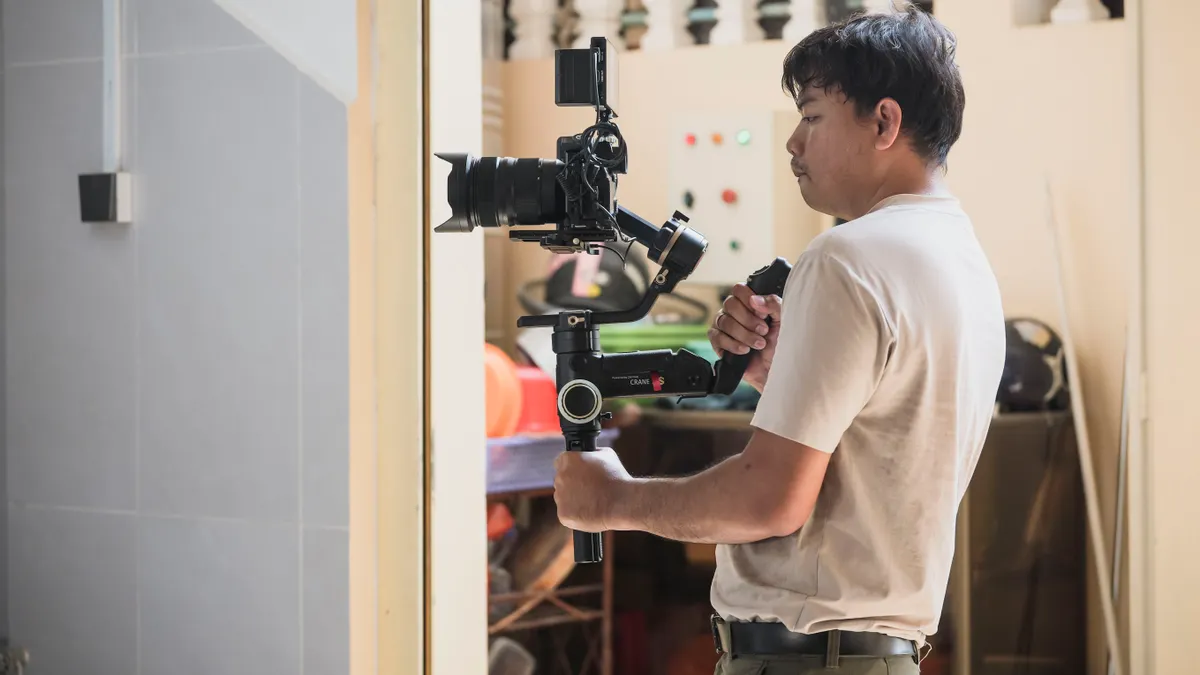
Axis locks left engaged are one of the most common reasons a gimbal seems broken, and the fix is to unlock every axis before powering it on. If the motor tries to fight a lock, the rig may buzz, jerk, or shut down to protect itself, so if you are unsure, consult the manual or a professional before forcing movement.
Check each axis by hand before startup:
- Pan axis: make sure the swivel arm can move freely.
- Tilt axis: confirm the camera plate or cradle is not pinned in the travel stop.
- Roll axis: verify that any transport latch or side lock is fully released.
Some models have bright red transport locks, while others use smaller tabs that are easy to miss in low light. If the gimbal powers on and immediately vibrates in place, one of those locks is still engaged. Turn it off, release the lock, and restart it. Do not try to force motion through the motor.
A useful habit is to watch for resistance before you even hit the power button. If an axis does not swing smoothly by hand, the problem may be mechanical rather than electronic. A strap, HDMI cable, mic cable, or battery grip can snag an axis and make the system think the motor has failed.
The trade-off here is speed versus safety. Leaving the locks on saves transport time but invites startup faults. Releasing them each time takes a few seconds, but it prevents the motor from slamming into a blocked position; if the motion still feels wrong, consult the manufacturer or a service technician. That is cheaper than replacing a burned-out motor assembly.
This section is not for balancing the load or tuning the rig. If the arm moves freely but still faults, the issue is probably load distribution or firmware, not a lock. The fix is to keep the startup sequence boring: unlock, power on, then evaluate the display or beep pattern.
What to do when the gimbal shakes, jitters, or hums
A shaking or humming gimbal usually means the motors are overloaded, the payload is out of range, or the start-up state is wrong. The first fix is to reduce the load and restart cleanly, because the motors can only compensate for so much, and if the problem persists, consult the model’s support guide or a repair professional.
Here is the practical order:
- Power off the gimbal. Never keep a vibrating motor fighting itself for long.
- Remove accessories that add weight or drag. Large lens adapters, heavy microphones, external monitors, and thick cables can push the setup past what the motors can handle.
- Check for anything snagging an axis. A cable brushing the roll arm is enough to create constant jitter.
- Restart with the rig held level. Some units start poorly if they are tilted or moving during boot.
- Listen for a repeated beep or feel for a pulsing motor. That usually means overload protection is active.
- If the payload is within the model’s rated range, inspect for mechanical binding. A screw too tight, a plate installed crookedly, or a folded arm can create the same symptom.
- Power up again after the load is cleared. If the vibration disappears, the issue was resistance, not electronics.
The core concept here is motor overload. Gimbal motors are designed to hold a position with small corrections, not to wrestle with a locked axis or a front-heavy rig. When they hit their limit, they often buzz, oscillate, or stop. That is the system protecting itself.
One common mistake is turning motor strength higher and higher without fixing the drag. That can mask the symptom briefly, but it also drains the battery faster and can make the movement rough. Another mistake is assuming every shake means a bad motor. Often, the motor is doing exactly what it is supposed to do: warning that the load is wrong.
If the shake appears only on startup and then settles, the issue may be minor. If it keeps hunting from side to side after 10 to 15 seconds, stop using it and inspect the rig again. Persistent hunting is not normal behavior, and manufacturer support or a technician should assess it if it does not clear.
Firmware updates that fix strange gimbal behavior
Firmware updates can fix unstable startup, false error codes, and app connection problems, and they are worth doing when the hardware checks out but the gimbal still behaves oddly. Use the maker’s official app or desktop utility, not a generic flashing tool.
Before updating, do these three things:
- Charge the battery to a healthy level.
- Remove unnecessary accessories.
- Make sure the phone, cable, or computer connection is stable.
A failed update can leave the unit stuck in a halfway state, so this is not the first move if the gimbal simply will not power on. It is the move after the battery, locks, and motor load have been checked.
A simple update sequence looks like this:
- Open the official app or utility for the model.
- Connect the gimbal by the supported cable or Bluetooth pairing path.
- Check the firmware version for both the gimbal and, if listed, the battery or handle module.
- Install the update only when the connection is stable and the battery is charged.
- Leave the unit untouched until the process finishes and the app confirms success.
- Restart the gimbal and test each axis.
If the unit fails right after an interrupted update, the recovery path is model-specific. Some systems support a restore mode; others require a full reflash. That is one of the reasons generic advice falls short here. A DJI RS 3 Mini, for example, does not behave exactly like a different brand’s handheld stabilizer.
The honest drawback is that firmware is not a magic fix. It helps when the problem is software, compatibility, or a known bug. It does not cure a binding joint, a dead battery, or a cracked motor wire, and if those signs are present, a professional repair may be the safer next step. Use it as a targeted repair, not a ritual.
When the problem is the battery, not the gimbal
The battery is often the real fault when the gimbal dies, beeps, or cuts out under load, and the fix is to test the pack before you blame the body. A weak battery can look fine on paper and still fail as soon as the motors ask for current.
Look for these signs:
- The unit boots, then shuts off when the motors engage.
- The battery indicator drops quickly under a 10 to 20 second test.
- The charger says the pack is full, but runtime is short.
- The battery gets unusually warm during a brief charge cycle.
If that happens, the battery may be worn, not merely low. Lithium-ion packs age with use and storage, and a pack that no longer holds enough current can cause the controller to reset. Swap in a known-good battery if the model supports it. If the gimbal behaves normally with the replacement, the diagnosis is clear.
A poor battery can also trigger false motor faults. That is why the symptom list can be misleading. A person sees a motor error and starts searching for a motor replacement when the pack is the cheaper and more likely fix.
Do not keep forcing a suspect battery through repeated full drains. That can turn a weak-pack problem into a no-power problem. If the pack is swollen, cracked, leaking, or physically damaged, stop using it and follow the manufacturer’s disposal guidance.
The useful rule is simple: if the gimbal fails under load but wakes up briefly, suspect the battery first. If it never wakes up at all, suspect the battery contacts, charger, or power path before anything more complicated.
The mistakes that cost the most time
The biggest troubleshooting mistakes are skipping the easy checks, changing too many variables at once, and forcing the motors against resistance. Each one costs time, and the third one can cost hardware.
Common errors and the better move:
- Updating firmware first: this can waste 20 to 30 minutes when the real issue is a loose battery or lock. Check power and locks first.
- Testing with a fully built rig: a heavy lens, mic, and cable loom can make a simple problem look like a major failure. Strip the setup down.
- Ignoring one stubborn axis: one locked roll arm can make the whole system seem dead. Test each axis separately.
- Powering on while holding the rig at an angle: this can cause startup wobble or protection shutdown. Boot it level.
- Forcing a beeping motor to keep moving: that can overheat the system. Stop, inspect, restart.
If a gimbal still fails after battery, locks, load, and firmware have all been checked, the fault is moving into repair territory. At that point the likely causes include damaged wiring, a failed motor driver, or a board problem. Those are not fixes to guess at on a busy shoot day.
The right move is to stop treating the symptom as random. A gimbal almost never “just breaks.” It tells on itself: no power, lock engaged, overload, or software fault. Read the symptom, fix the cause, and move on.
The fastest working order when you need it back now
The quickest recovery sequence is battery, lock, load, then firmware, and it usually solves the issue without any guesswork. Follow this order when you need a quick return to service:
- Install a charged battery and confirm the contacts are seated.
- Release every transport lock on the pan, tilt, and roll axes.
- Remove extra weight and any cable that can drag an arm.
- Power on the gimbal while holding it level.
- Watch for beeps, vibration, or shutdown within the first 10 seconds.
- Update firmware only if the hardware checks pass and the unit still misbehaves.
This order works because it follows the most common failures in the same order they show up. It also avoids the trap of chasing one bad clue for an hour. If the gimbal starts working after step 2, you have saved yourself a longer diagnosis. If it only works after step 6, the problem was software. If it still does not work, the fault is likely beyond routine troubleshooting.
That is where judgment matters. This guide is for the reader who needs the gimbal back online, not the reader looking to learn how the motors are engineered. For that bigger setup picture, the hub on gimbal setup and operation is the right next stop.
Why is my gimbal shaking?
A gimbal is usually shaking because the motors are fighting a load they cannot control, or because an axis is binding. Remove extra weight, clear any cable snag, and restart with the rig level. If the shaking continues after that, check for a transport lock, then update firmware only after the hardware is clean.
Why won’t my gimbal turn on?
A gimbal usually will not turn on because the battery is low, not seated properly, or not making contact.
Drafted with AI; not yet reviewed by a person.